Building a Real MCP Server: A QR Code Generator Example
It started with two QR codes for an app
We needed QR codes for Kids Create: one to download the iOS app, and another for Android. Someone visiting the site on a desktop should be able to scan a code with their phone and get to the right app store.
That's the practical use case behind this project. The two QR codes below were generated through our MCP tool and used on the Kids Create website.
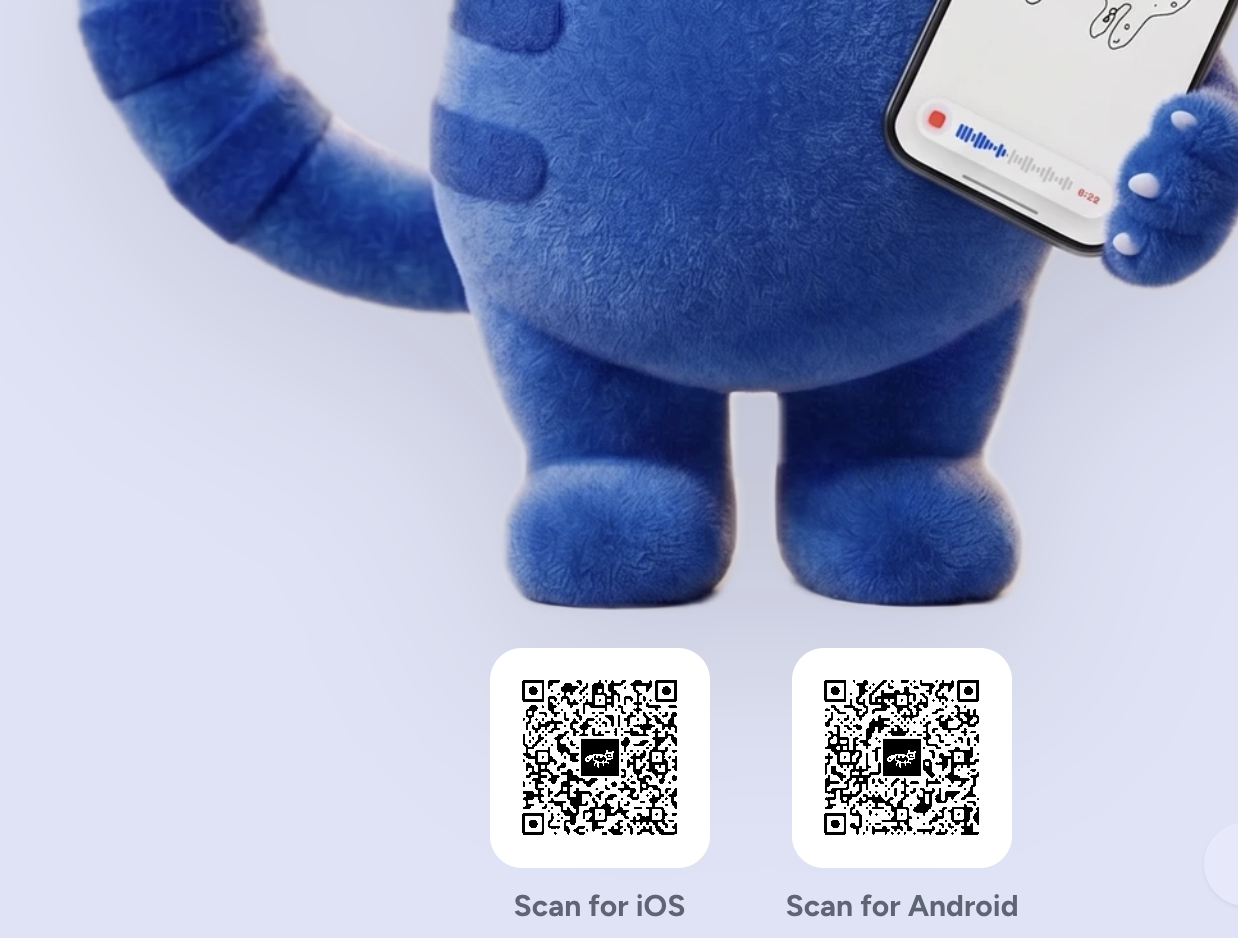
QR codes generated through MCP, in use on Kids Create.
A QR code doesn't need a subscription
If you've Googled "QR code generator," you've probably run into sites that steer you toward a paid plan. That feels excessive when all you want is an image containing a link. Basic static QR generation is straightforward with an existing library: encode the URL, render the image, and use it wherever you need it.
There are legitimate extras a service can charge for, such as scan analytics or a managed redirect that lets you change the destination later. But those are separate from generating a static QR code. A code that directly encodes your URL doesn't need a subscription to keep encoding that URL; the destination itself still needs to remain available.
We'd already had a free QR code generator on DevTools Daily for a while. It runs entirely in your browser and supports custom dots, corners, colors, gradients, and an embedded logo. For manually creating and downloading a code, that page already did the job.
What we wanted next was to make QR generation available to an AI agent through MCP.
From a browser tool to a server-side MCP tool
MCP (Model Context Protocol) gives AI applications a standard way to discover and call tools. A compatible client can connect to a server, list its tools, read their input schemas, and invoke them with structured arguments.
This wasn't just a matter of putting an MCP endpoint in front of our existing page. The website generator was fully client-side; for MCP, we built a new server-side implementation. Both use qr-code-styling, but the rendering happens in different environments.
In the browser, the library has the page's DOM available. On the server, rendering needs Node-compatible support: canvas for PNG output and jsdom to provide a DOM for SVG generation. The MCP tool takes the requested options, renders the QR code on the server, and returns the image to the client.
The AI isn't inventing the QR pattern. It's choosing the arguments and calling a deterministic tool that does the encoding and rendering.
Give the agent a useful input schema
The tool is called generate_qr_code. Its schema describes the URL or text to encode, image size, output format, and styling options.
The following snippets show the main pieces, not a complete runnable server. They use the TypeScript SDK v2 package conventions and Zod for the input schema; the full rendering implementation and HTTP setup are omitted.
import * as z from 'zod/v4';

const inputSchema = z.object({
  data: z.string().min(1).max(4000).describe('The text or URL to encode'),
  size: z.number().int().min(64).max(2048).default(512).describe('Output width and height in pixels'),
  format: z.enum(['png', 'svg']).default('png').describe('Image format to return'),
  dotsType: z.enum(['square', 'rounded', 'dots', 'classy', 'classy-rounded', 'extra-rounded'])
    .default('square')
    .describe("Style of the QR code's data dots"),
  dotsColor: z.string().regex(/^#([0-9a-fA-F]{3}|[0-9a-fA-F]{6})$/).default('#000000')
    .describe('Color of the data dots (and corners, unless overridden below)'),
  // ...corner styles, gradient, background color, optional logo, error-correction level
});
The SDK exposes this as JSON Schema during tool discovery. Field descriptions give the agent context, defaults keep simple calls short, and bounds make the accepted inputs explicit. The full tool also supports corner styles, a background color, gradients, and an optional logo.
Render the image and return it through MCP
Registration connects that schema to the rendering function:
import { McpServer } from '@modelcontextprotocol/server';

const server = new McpServer({ name: 'devtoolsdaily-qrcode', version: '1.0.0' });

server.registerTool(
  'generate_qr_code',
  {
    description: 'Generate a customizable QR code (dot/corner styles, colors, gradient, optional embedded logo) and return it as an image.',
    inputSchema,
  },
  async (input) => {
    const { buffer, mimeType } = await generateQrCode(input);
    return { content: [{ type: 'image', data: buffer.toString('base64'), mimeType }] };
  }
);
Here, generateQrCode represents our server-side renderer, not an MCP SDK function. It returns the image bytes and MIME type. The tool packages those bytes as base64 in an MCP image content block.
That's an important distinction: the result is an image, not a link to a hosted QR-code service. The client can decode and save it as an asset. Whether it also previews that image inline depends on the client.
Styling still needs some care. Keep strong contrast and a clear quiet zone around the code, and scan the final exported image on a phone, especially after adding a logo or resizing it for a page.
Make it reachable over HTTP
We mounted the MCP handler in our backend at /mcp/qrcode, using Streamable HTTP. The official SDK handles protocol messages such as initialize, tools/list, and tools/call; our application supplies the tool definition and renderer.
The public endpoint is:
https://api.devtoolsdaily.com/mcp/qrcode
The SDK provides Node.js and framework adapters for this layer. It's worth following the SDK documentation for your version rather than mixing examples from different SDK releases. A deployed service also needs its own decisions about request limits, errors, and access control; registering a tool isn't the whole deployment.
Testing it without writing a client
Our MCP Inspector is a browser-based client for connecting to remote MCP servers, inspecting their schemas, and calling their tools. The QR Code Generator is one of its built-in examples:
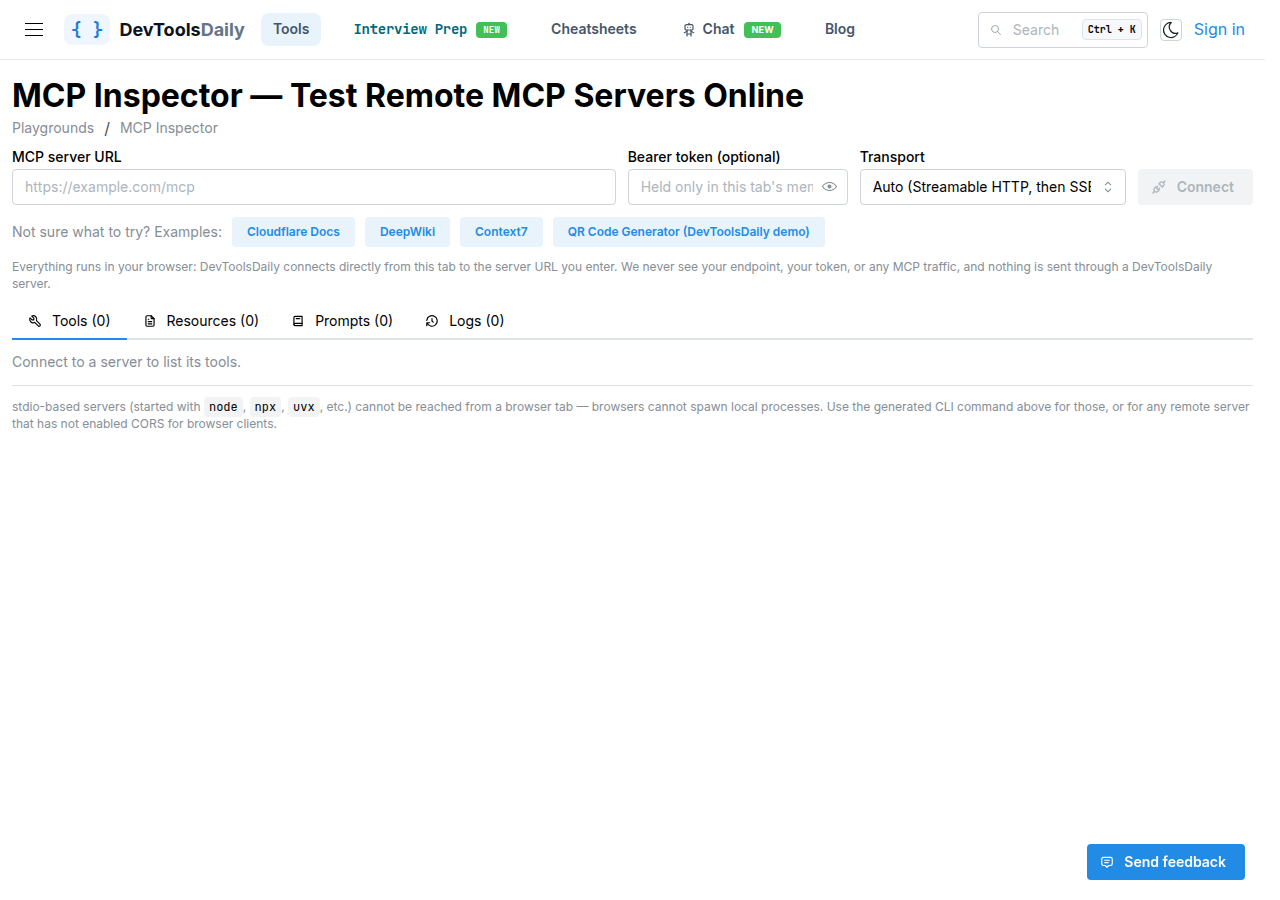
Connect and select generate_qr_code to see the input form. The Inspector builds it from the discovered schema, so we didn't need to write a separate QR-specific form for this tool:
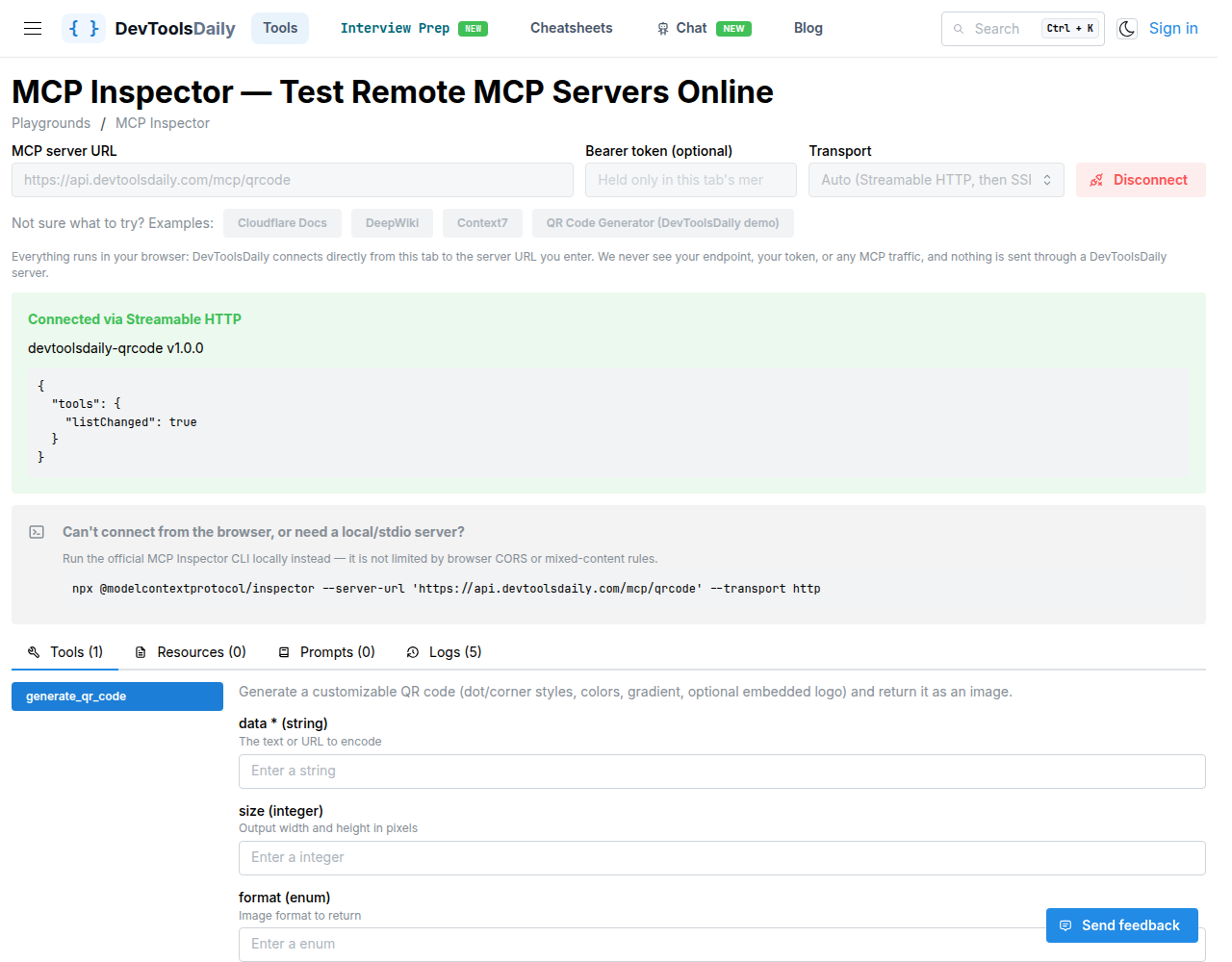
Enter a URL, choose a color, and call the tool. The raw response contains the base64 image data and MIME type:
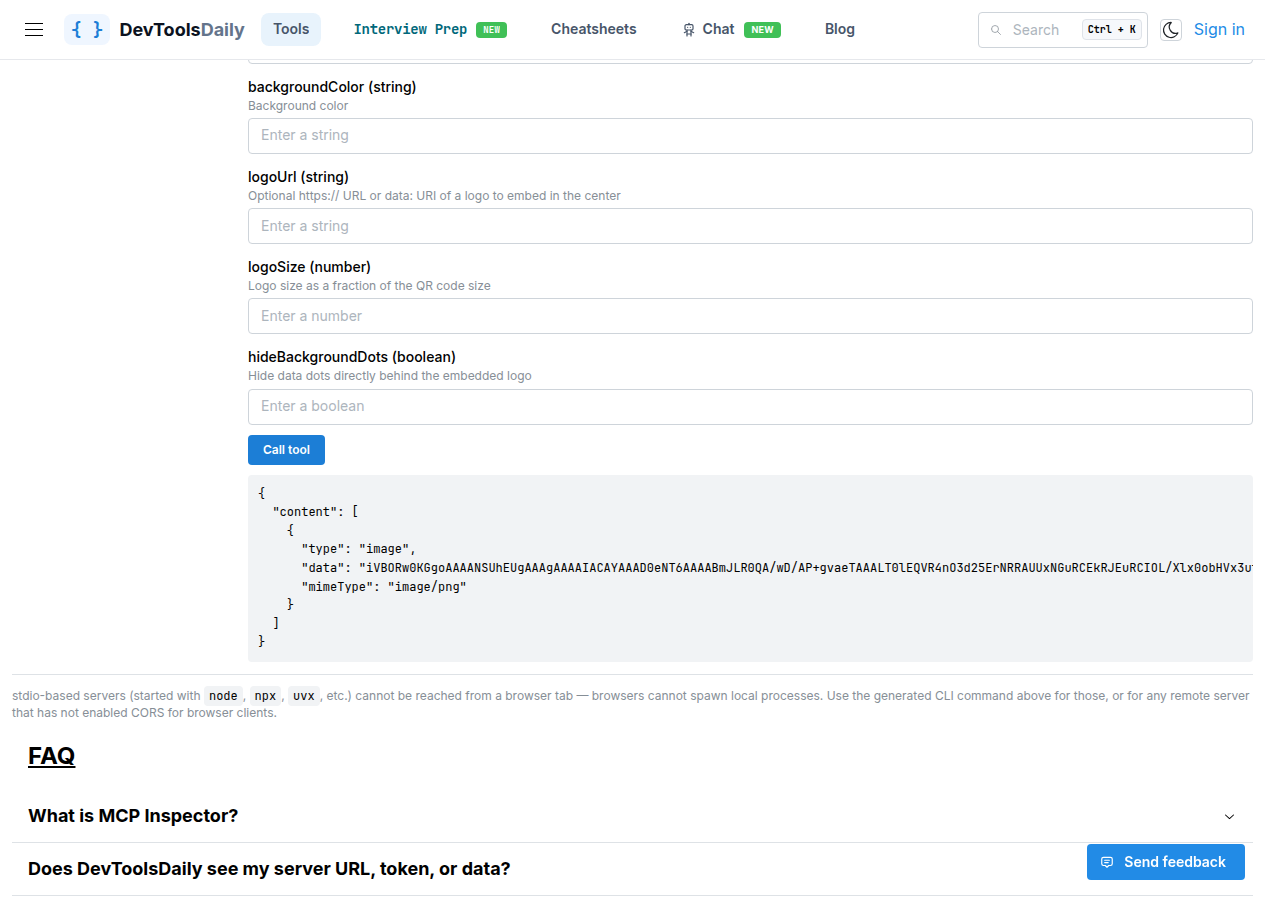
Decoding the response produces the generated QR image:

We also checked the endpoint with the official MCP client SDK: initialize a connection, list the tools, and call generate_qr_code with explicit arguments. That checks the protocol flow independently of our Inspector. It doesn't mean an AI chose the arguments autonomously, or that every client will display the result the same way.
Try it yourself
The quickest route is the MCP Inspector: select the QR Code Generator example, connect, and call generate_qr_code.
For another MCP client, add a remote server with the URL above and select Streamable HTTP where the client asks for a transport. Configuration formats differ between clients, so follow your client's remote-server instructions rather than assuming one JSON configuration works everywhere. The public demo currently requires no API key.
Start with a small set of tool arguments:
{
  "data": "https://kidscreateapp.com/",
  "size": 512,
  "format": "png"
}
This example encodes the website URL; for an app-download code like the ones in the screenshot, use the corresponding app-store URL as data.
If you just need to make a QR code yourself, the browser-based generator is still there. MCP adds another way to get the same kind of useful asset: an agent can request it as part of its workflow, without a trip through a separate website or a paid QR service.